
Keyboards
Create interactive bot experiences with Reply and Inline Keyboards.
Telegram bots support two types of keyboards that enhance user interaction: Reply Keyboards (custom keyboards that appear below the chat) and Inline Keyboards (buttons attached directly to messages).
Appears below the message input. When tapped, sends the button text as a regular message.
- Replaces the default keyboard
- Great for menu navigation
- Can request contact/location
Attached to messages. Triggers a callback query without sending a message.
- Stays with the message
- Perfect for actions & navigation
- Can open URLs & web apps
Reply Keyboard
The Keyboard class provides a fluent API for building reply keyboards. Instead of manually constructing ReplyKeyboardMarkup with nested arrays, you can chain methods to build keyboards intuitively.
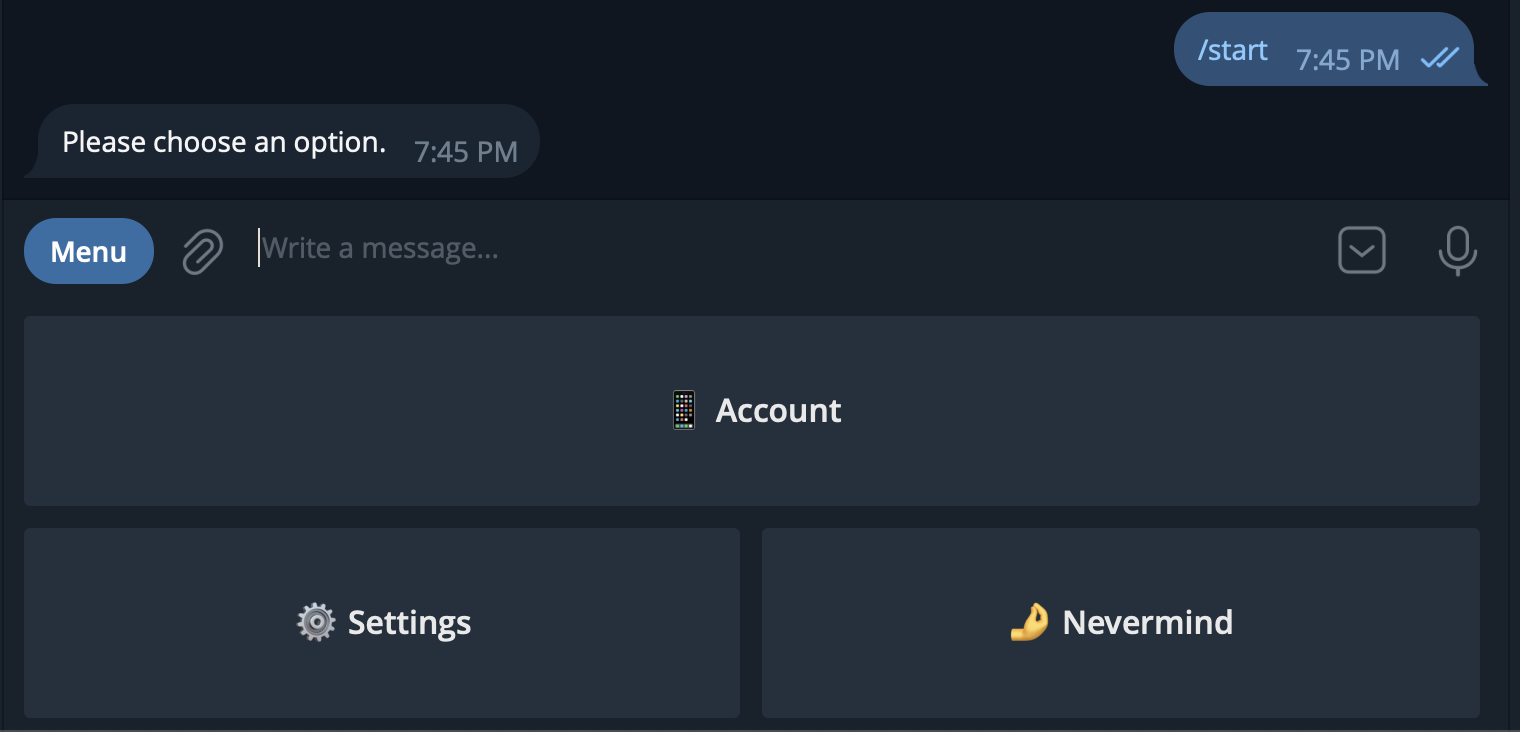
Basic Usage
Use .text() to add buttons and .row() to start a new row:
final keyboard = Keyboard()
    .text("📱 Account")
    .row()
    .text("⚙️ Settings")
    .text("🤌 Nevermind");

await ctx.reply("Please choose an option:", replyMarkup: keyboard);
Factory Constructors
For common patterns, Keyboard provides convenient factory constructors:
// Create keyboard from 2D string array
final keyboard = Keyboard.from([
  ["Yes", "No"],
  ["Maybe", "Cancel"]
]);

// Create a grid layout (3 columns)
final numpad = Keyboard.grid(
  ["1", "2", "3", "4", "5", "6", "7", "8", "9", "*", "0", "#"],
  columns: 3,
);

// Single row of buttons
final quick = Keyboard.singleRow(["Option A", "Option B", "Option C"]);

// Single column of buttons
final menu = Keyboard.column(["Start", "Help", "Settings"]);
Configuration Options
Customize keyboard behavior with configuration methods:
final keyboard = Keyboard()
    .text("Submit")
    .row()
    .text("Cancel")
    .resized()           // Fit keyboard to screen
    .oneTime()           // Hide after button tap
    .persistent()        // Always show keyboard
.placeholder("Select an option...");| Method | Description |
|---|---|
resized() | Resize keyboard vertically for optimal fit |
oneTime() | Hide keyboard after a button is tapped |
persistent() | Always show keyboard when regular keyboard is hidden |
placeholder(text) | Show placeholder text in input field |
makeSelective() | Show keyboard to specific users only |
Special Buttons
Reply keyboards support special button types for requesting user data:
final keyboard = Keyboard()
    .requestContact("📞 Share Contact")
    .requestLocation("📍 Share Location")
    .row()
    .users(
      text: "👤 Select User",
      requestId: 1,
      userIsBot: false,
    )
    .chat(
      text: "💬 Select Chat",
      requestId: 2,
    )
    .row()
    .poll("📊 Create Poll", type: PollType.quiz)
    .webApp("🌐 Open App", "https://example.com");
Handling Keyboard Taps
When a button is tapped, its text is sent as a regular message. Use bot.text() to handle it:
// When the user taps a button, its text is sent as a message
bot.text("⚙️ Settings", (ctx) async {
  await ctx.reply("Here are your settings.");
});

// Handle multiple options
bot.text("📱 Account", (ctx) => ctx.reply("Account details..."));
bot.text("🤌 Nevermind", (ctx) => ctx.reply("Okay, no problem!"));
Removing the Keyboard
To remove the custom keyboard and show the default system keyboard:
// Remove the keyboard from the user's screen
await ctx.reply(
  "Keyboard removed!",
  replyMarkup: Keyboard.remove(),
);
Inline Keyboard
The InlineKeyboard class provides a fluent API for building inline keyboards. Inline buttons appear directly on messages and trigger callback queries instead of sending messages.
Basic Usage
Use .text(label, callbackData) to add callback buttons:
final keyboard = InlineKeyboard()
    .text("👍 Like", "like")
    .text("👎 Dislike", "dislike")
    .row()
    .url("🌐 Visit Website", "https://televerse.weaverlabs.ca");

await ctx.reply("Rate this bot:", replyMarkup: keyboard);
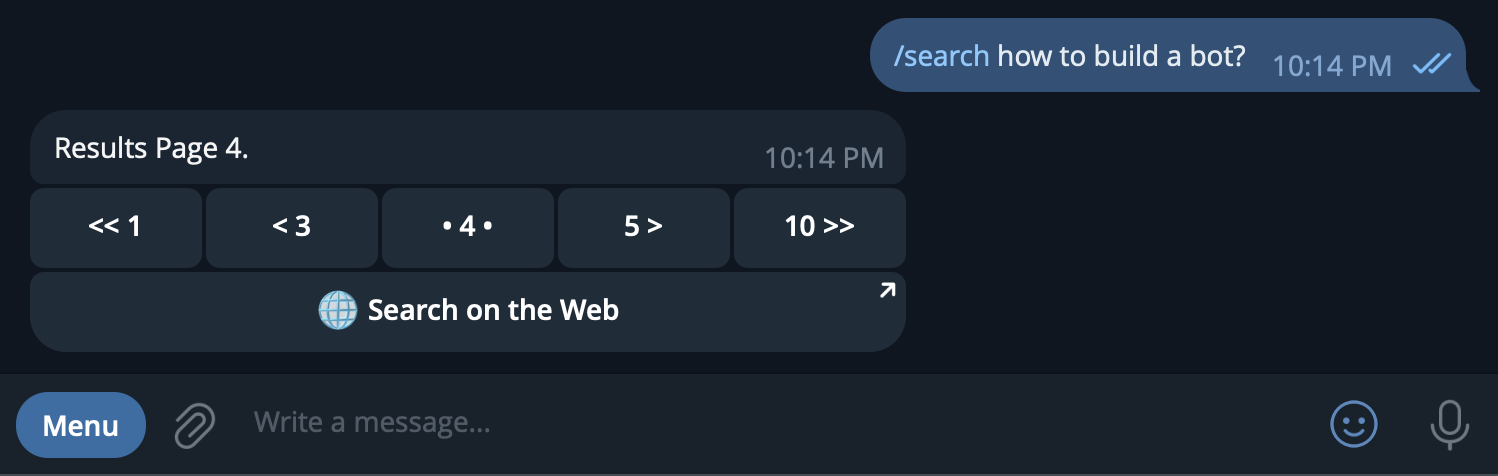
Pagination Example
Inline keyboards are perfect for pagination and navigation controls:
final keyboard = InlineKeyboard()
    .text("<< 1", "page_first")
    .text("< 3", "page_prev")
    .text("• 4 •", "page_current")
    .text("5 >", "page_next")
    .text("10 >>", "page_last")
    .row()
    .url("🌐 Search on Web", "https://google.com/search?q=...");

await ctx.reply("Results Page 4.", replyMarkup: keyboard);
Factory Constructors
Build keyboards from arrays using factory constructors:
// Create from (text, callbackData) records
final keyboard = InlineKeyboard.from([
  [("Yes", "answer_yes"), ("No", "answer_no")],
  [("Maybe", "answer_maybe")],
]);

// Grid layout with 3 columns
final options = InlineKeyboard.grid([
  ["A", "opt_a"], ["B", "opt_b"], ["C", "opt_c"],
  ["D", "opt_d"], ["E", "opt_e"], ["F", "opt_f"],
], columns: 3);
Button Types
Inline keyboards support various button types for different actions:
final keyboard = InlineKeyboard()
    .text("Callback Button", "data")
    .url("Open URL", "https://example.com")
    .row()
    .webApp("Launch App", "https://app.example.com")
    .login("Auth Login", "https://auth.example.com")
    .row()
    .switchInline("Share", "check this out")
    .switchInlineCurrentChat("Search Here", "query")
    .row()
    .pay("💳 Pay Now")
.copyText("📋 Copy", copyText: "ABC123");| Method | Description |
|---|---|
text(label, data) | Callback button with custom payload |
url(label, url) | Opens a URL in browser |
webApp(label, url) | Opens a Telegram Web App |
login(label, url) | Telegram Login button |
switchInline(label, query) | Switch to inline mode in another chat |
switchInlineCurrentChat() | Switch to inline mode in current chat |
pay(label) | Payment button (invoices only) |
copyText(label, copyText:) | Copy text to clipboard |
game(label) | Launch a Telegram game |
Handling Callback Queries
When an inline button is pressed, a callback query is sent. Use bot.callbackQuery() to handle it:
// Handle specific callback data
bot.callbackQuery("like", (ctx) async {
  await ctx.answerCallbackQuery(text: "Thanks for liking! ❤️");
  await ctx.editMessageText("You liked this message!");
});

// Handle with pattern matching
bot.callbackQuery(RegExp(r'^page_'), (ctx) async {
  final action = ctx.callbackQuery!.data;
  // Parse action and update pagination...
  await ctx.editMessageText("Page updated!");
});
Tip: Always call ctx.answerCallbackQuery() to acknowledge the callback. This removes the loading indicator from the button.